 or
or  . When you right-click on the icon different, you get three possible actions:
When the room server is active, the Room Server icon will become available in the task bar notification area: or . When you right-click on the icon different, you get three possible actions:
The Room Server window consists of different tabs which contain different types of information.
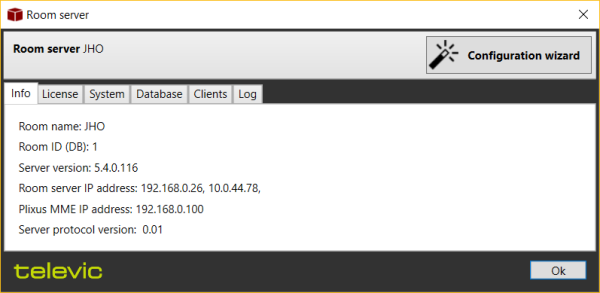
Figure 1-4 The Room Server window
The following sections give a detailed description of the information you can find in the different tabs.
The Info tab contains information about
The License tab contains the following information:
On the System tab you can find information about the active conference system:
Shows the connection state, location and version of the database.
This tab shows an overview of all the clients connected to the Room Server, the type of application, the computer name and “last alive check”, which indicates when their connection was last verified.
On the logging tab you can find all Room Server and Room Service logging. In case of problems you can send these log files to the Televic Conference support team. Click the links to go to the log file folders.
You can also view the real-time logging. This opens a window where you can follow the real-time communication with the central unit.