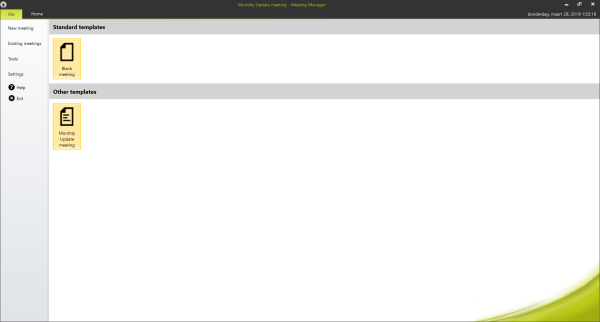
In the File menu you can find and configure the following information:
Figure 1-17 The File menu page
You can create a new meeting by clicking Blank meeting on top of the page. If a meeting is currently opened, the CoCon Meeting Manager will ask whether you want to close the current meeting and open a new one.
Another option is to open a Meeting Template, and specify the start of the meeting from the data already contained in the Meeting Template. To do this, select any of the Meeting Templates in the lower list. Additionally, you can delete Meeting Templates by right clicking on the Meeting Template, and selecting Delete this template. After confirmation, the Meeting Template is deleted.
This tab gives you an overview of the created meetings in the database. A calendar filter on top allows you to select a time interval. The color of the meeting indicates the status of the meeting:
To open a new meeting, select the corresponding meeting title and then click Open. When you select a meeting, you can delete it from the centralized database by clicking Delete.
This menu gives you access to the other applications of the CoCon software suite. Click any of the icons to start the application.
On the settings page you can change the language of the application and choose to remember or forget the current Room Server. If you choose to remember the Room Server, the Meeting Manager will automatically start up using the remembered Room Server.
In the settings menu you can also choose to display a message when a delegate is successfully read from or written to a badge.