Configure general agenda items
On the Agenda tab you can define the agenda topics of your meeting. The screen shows all configured agenda topics and allows you to add, remove and configure these topics.
Click the agenda topic title to select it, the title becomes bold when it's selected. To deselect the item click an empty space on the page. To open the topic, you need to double click the topic title. Double click it again to close the topic.
The agenda tab ribbon
In the ribbon of the Meeting manager, you can find different functions to manage agenda topics.

- Add Discussion: add a discussion agenda topic
- Add Lecturer: A lecturer agenda item is one where one or more delegates can be specified as lecturer(s) and there is no discussion.
- Add Voting: add a voting agenda item with multiple voting options. For more information see "Configure voting agenda items" on page 1.
- Delete item: Deletes the selected agenda topic. If the selected item has subtopics, these are also removed.
- Delete all: deletes the entire agenda.
- Selected type: Using this drop-down box, you can modify the type of the currently selected topic.
- Move up: Moves the selected agenda item forward in the agenda. If the selected item is a subtopic, it can move within its parent.
- Move down: Moves the selected agenda item backward in the agenda. If the selected item is a subtopic, it can move within its parent.
- Decrease indent: Moves the selected agenda topic up in the hierarchy of the agenda items. You can also move topics up by clicking same arrow icon next to the agenda topic title. you cannot decrease the indent for top level topics.
- Increase indent: Moves the selected agenda topic down in the hierarchy of the agenda items. You can also move topics down by clicking same arrow icon next to the agenda topic title. you cannot increase the indent for subtopics
- Expand all: Expands all agenda topics which have subtopics. These agenda items have + or – next to them.
- Collapse all: Collapses all agenda topics which have subtopics.
- Show/Hide type: This button allows you to show or hide the types of the agenda items in the agenda.
- Hide all: hides all the details of the agenda topics.
- Modify template: click to make changes to the default voting template
- Default Template: select the default voting template from the dropdown list
General agenda item functionality
Agenda items of any type have the following tabs of settings in common:
- General: this tab lets you define the title and the description of the agenda item.
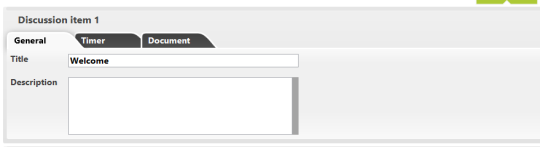
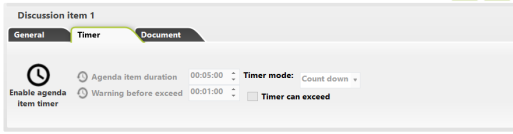
- Timer: this tab lets you enable or disable the agenda topic timer. With the button Enable agenda item timer you activate a meeting timer for the selected agenda item. This timer automatically starts when activating the agenda item and is shown in the Operator Application and the Signage Application. The following timer options are available:
- Agenda item duration: This is the time you want to spend on the agenda item.
- Warning before exceed: is the amount of time before the scheduled end of the agenda item, you want to display a warning. At that time, the color of the timer bar will change (from green to orange) to indicate that the time of the agenda item time is nearly up.
- Timer mode: This option will select whether the agenda item timer will count down from the specified duration or up to the specified duration.
- Timer can exceed: if enabled, the timer continues counting if the meeting time is exceeded. If you don’t check this box, the timer will stop counting if the meeting exceeds the specified end time.
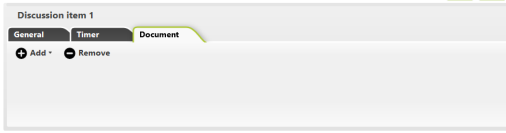
- Document: with this option you can add and remove documents to specific agenda topic. This option is only available when your license allows document management.
Lecturer agenda item
This agenda item type has one or more delegates who bring a lecture. When you add a lecturer agenda topic, a list with all delegates present in the database appears on the right side of the screen. Select one or more delegates and click the Add to agenda item button to add them as lecturer.
The agenda item itself shows an overview of all the currently associated lecturers. You can select one or more of them and click Remove in the agenda item to remove them.
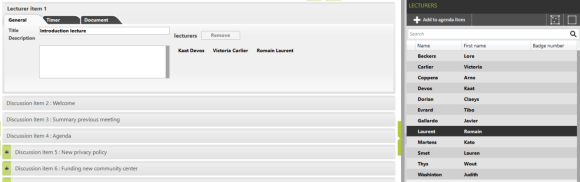
Figure 1-19 How a lecturer agenda topic looks like in the Meeting Manager