Manage documents
This option is only available when your system contains multimedia devices where you can view documents.
On this tab you can select the documents to include in the meeting. Delegates with an interactive delegate unit can then consult these documents on their device during the meeting.
Currently, the only documents you can upload are PDF files.
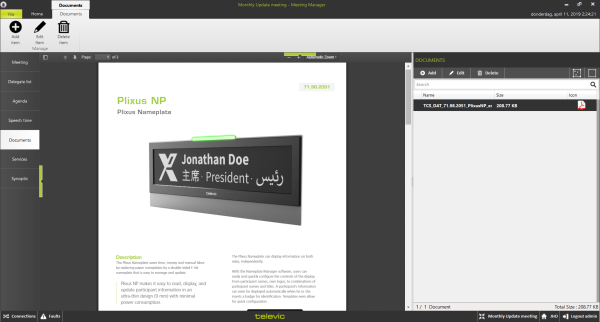
Figure 1-21 The Documents tab
Document preview
The middle section shows a preview of the selected document. On top of this section a number of controls are available:
- Toggle sidebar: toggles a sidebar with thumbnails of the pages in the document shown.
- Previous / next page: scrolls the viewer to the previous or next page.
- Page: shows the current page and the total number of pages. You can change the current page number so you can jump to a page you wish.
- A number of predefined zoom levels, such as
- Automatic zoom
- Actual Size
- Fit Page
- Full width
Document overview
The right section, Documents, shows the list of documents that uploaded for the current meeting. Each document has the following attributes, shown in columns:
- Name: the name of the document.
- Size: the size of this document. The total size of ALL documents in the meeting is shown on the bottom of the Documents column.
- Icon
The following operations are possible on documents, using the buttons in the ribbon on the top of the Documents column:
- Add:adds a new document to the list
- Edit: change the document
- Delete: delete the selected document