
Figure 1-43 Meeting statistics
In this view the operator has a complete view of all the data that is stored in the database. The goal is to provide a clear view of the collected data. Additionally, when the Import/Export license module is activate, the user has the option to export some or all of these statistics to several formats.
The are 4 statistics categories, which you can select by clicking Switch Statistics in the Statistics ribbon.
Figure 1-43 Meeting statistics
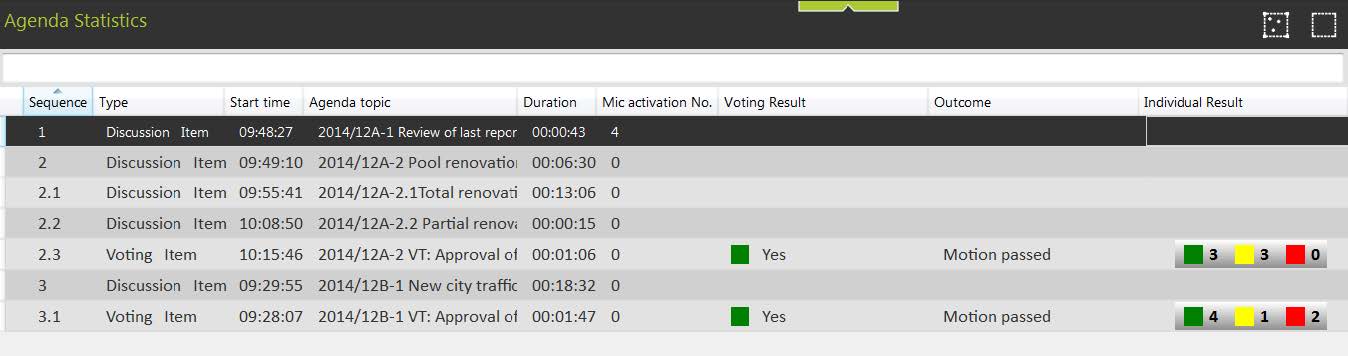
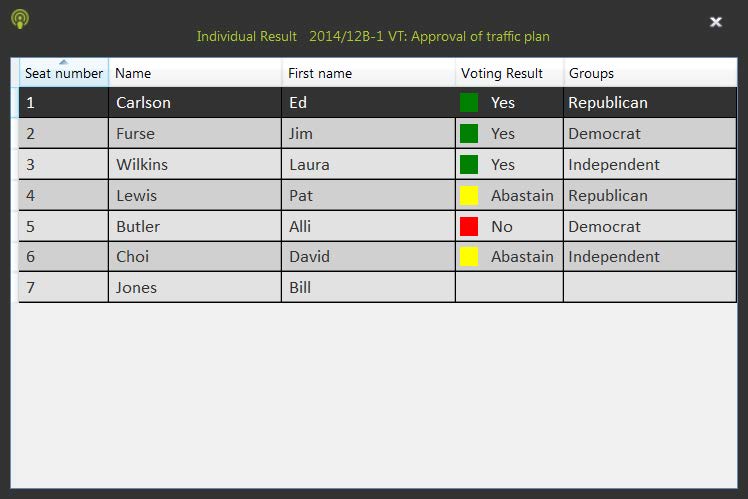
Figure 1-44 Agenda statistics
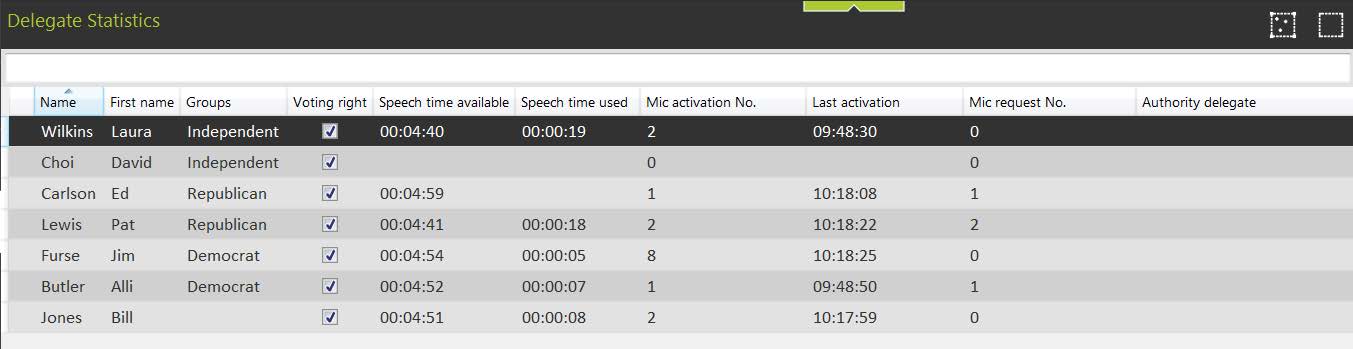
Figure 1-45 Delegate statistics

Figure 1-46 Group statistics
You have the following options to change the statistics presentation:
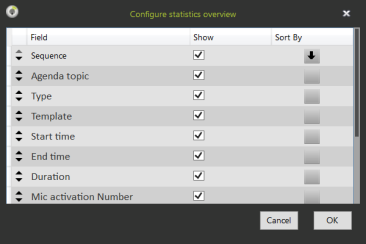
The Export button in the Statistics ribbon is only available when the Import/Export license module is activated. It allows you to choose a subset of the available meeting data and export it to Word, XML and generate a custom print report.
When you click Export statistics a wizard starts up, here you can select which data from the Meeting, Delegate, Agenda or Group statistics you want to export. You can also choose how you want to sort the columns. In the Agenda statistics you can select to include the individual voting results of that agenda topic. When you activate this checkbox another tab appears in the popup, called “Individual results”. There you can further specify the fields to include in the export.
The last tab in the popup is called Export, here you can select and configure your export format. Also specify the path where you want to save the files to. The file name uses the date and time of the export e.g.: 2014-5-27_10-27-48Statistic.docx. Under Print you can specify the printer you want to use to do the printing.
This generates a print preview of all badge log in/out events during that meeting.