General functions and hot keys
Diagnostics
In the bottom part of the screen you find some diagnostics information. By clicking “Connections” a window pops up with the status of the connections.
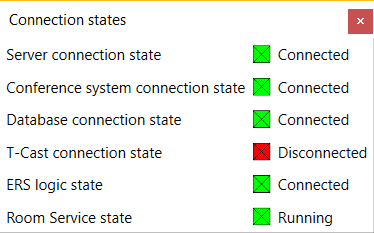
Figure 1-49 Connection states pop-up
When for some reason a connection would get lost then the “Connections icon” will turn orange.
By clicking “Faults” a pop-up appears with a list of faults. The ones in green are resolved problems. By clicking “Remove all problems” you can clear the list. Clicking “Remove resolved problems” only clears the “green” problems. When a problem occurs the “Faults icon” turns red and a message appears. See figures below.
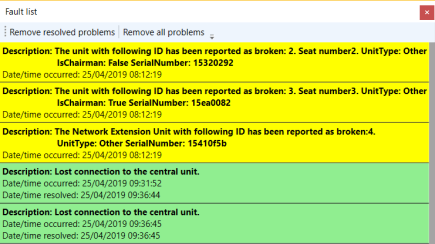
Figure 1-50 Fault list
In the right bottom corner the following information can be found:
- Number or present delegates / number of present delegates with voting right: This is based on the number of delegates that are logged in. With fixed seating this number will remain fixed. With badges, this changes depending on the badge-in/out events.
- Logout admin: this can be used to log out of the application.
General functions and hot keys
This section contains a number of general functions and hot keys that are available within the Operator Application. These hot keys are at your disposal:
- CTRL+wheel mouse up/down: zoom in/out. You can also use the slider on the upper right corner of the viewer.
- Click on any microphone/seat icon to activate it. Note that some operator modes will not allow the microphone to be switched on.
- Right-click on any microphone/seat icon to have a context menu which allows you to activate the microphone, or put the microphone in request.
- Hold down CTRL and right-click on any microphone to put it in request. Note that some operator modes and central units may not allow a microphone to be put in request.
- Press the Num Pad “+” key to activate the first microphone in the request; this is similar to pressing the “Next”-buttons.