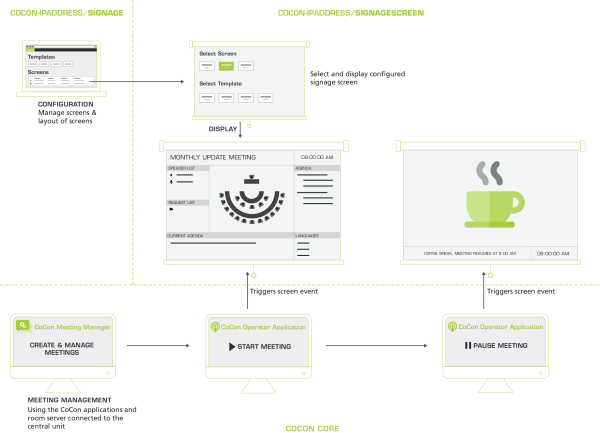
After you have configured the layout of the signage screen, you want to display this content on another large screen or display. In the application, you need to create screens where you can assign templates to. In CoCon the configuration of the signage screen and the actual display of the signage screen are entirely separated. These two features have two separate web browsers. To display the signage screen go to http://localhost:9000/signagescreen or replace "localhost" by the IP address of the computer where CoCon Core is installed.
When you go to the signage screen web browser, on the display you want to use, you can select the screen you wish to use. After you select the screen, you can select the template. Then the signage screen opens on your display. The screen content you see, depends on the status of your meeting. For the management of meetings, you need CoCon Core. In the meeting manager, you create the meetings and add the agenda and delegates, in the operator application you start and control the meeting.
If you change the status of your meeting in the operator application, for example when you pause the meeting, the content of the signage screen changes. This is due to the screen events in the signage template.
Figure 1-61 The relation between the display of a signage screen and the progress of a meeting managed by CoCon Core
Below you can find a short description of the two screens needed to display your signage content on an external screen. Part of the configuration takes place in the signage application, the second part you need to configure in the signage screen application.
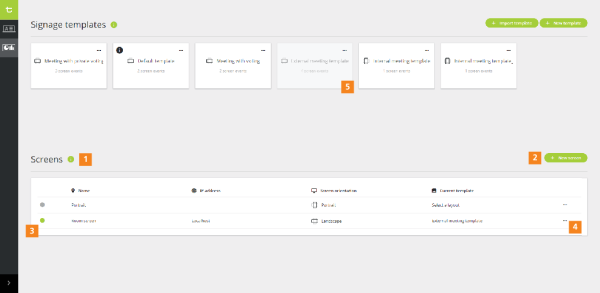
Figure 1-62 Where to add screens in the signage application
 to edit, remove or close the screen (when active).
Here (http://localhost:9000/signagescreen) you can select the content to show on your display.
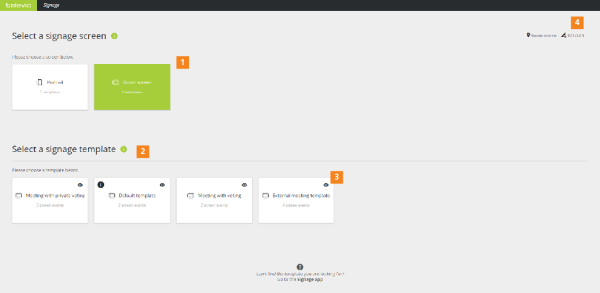
Figure 1-63 How to display the signage on an external screen
 you can preview the signage template