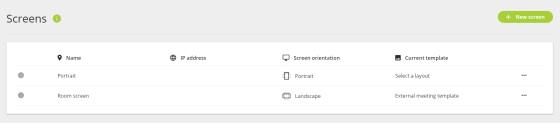
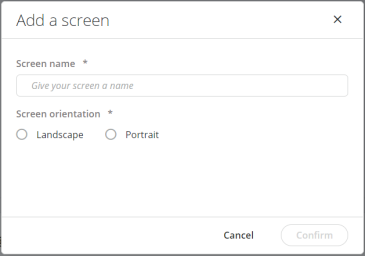
The new screen is now available in the Screen section on the bottom of the signage home page.
To add a signage screen:
The new screen is now available in the Screen section on the bottom of the signage home page.
To open a signage screen on your display:
When you select the template, the signage application will automatically start to display the screen event that is applicable at that time. This state depends on the status of your meeting in the CoCon Core Operator application. For example if the meeting is not yet running, then the signage screen will display the No meeting screen event (see "Introduction" on page 1).
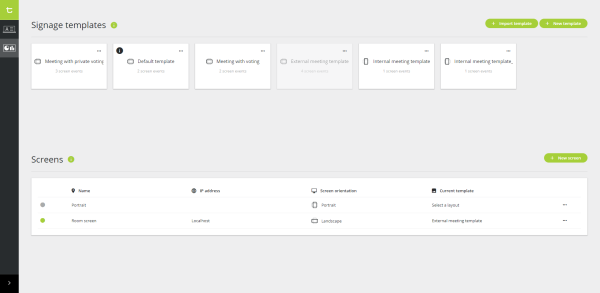
Figure 1-64 The signage screen application: where you go to start displaying the signage
There are different actions available on a signage screen. To see these actions click the more icon  next to the screen.

Figure 1-65 Different actions available on configured signage screens
Before starting a meeting, you can preview the signage screen on your display. In the preview mode you can switch between the different screen events of the selected signage template, to see how it looks on your display.
Click the eye icon  on the signage template to preview the signage template.
In the preview mode you can switch between the different screen events. Click the screen event in the bar on the bottom of the page, to preview that screen event.

Figure 1-66 The preview view of the signage screen