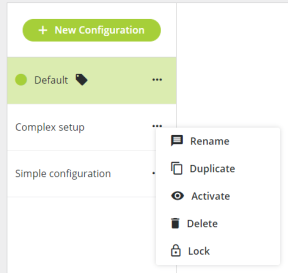
A video configuration is a collection of all video routing settings, being the video routing itself with the input and the output groups. Upon installation of CoCon, one video configuration is already available, this is the Default configuration. You cannot delete the Default configuration, this is to prevent that your system doesn't contain any video configurations. It is also not possible to edit this configuration. If you want to make changes to the Default configuration, you need to duplicate it.
To create a new configuration click New Configuration. This opens a pop-up where you need to specify a unique name for the configuration and where you can enter an optional description. Click Confirm to add the new configuration. The new configuration appears on the bottom of the list of all available configurations.
New configurations only contain an SDI input group, no output groups and all streams are available for delegates.
To rename a configuration click the more icon  next to the configuration and select Rename. Specify the new name and or description and click Confirm.
There is an option to duplicate configurations, when you want to create a similar configuration without the need to start from a completely new configuration. Click the more icon next to the configuration and select Duplicate.
To use a specific configuration in your setup, you need to activate it. You can recognize the active configuration by the green dot  next to the configuration. To activate the configuration click the more icon next to the configuration and select Activate.
To delete a configuration click the more icon next to the configuration and select Delete. Confirm the action and click Delete.
When you lock a configuration, it is no longer possible to edit er delete that configuration. To lock a configuration click the more icon next to the configuration and select Lock. You can recognize locked configurations by the lock icon  next the configuration and the greyed out video routing.