The video input is the video content that is available in your Plixus system. The video input can have different sources:
You can use the Plixus V-In boxes in 2 ways.
When there are units that have an integrated camera, you can add these to the Talking head input group. The webcam of the unit becomes active when the delegate activates the microphone. The assigned video stream then displays the video content of the webcam. When no microphone is active you can set a backup video source.
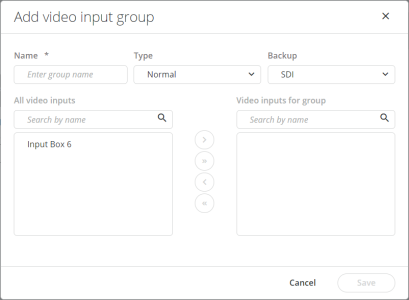
In the video routing matrix, you can find all available input groups on the left. To add a new input group click Add on the bottom of the Input group list. A popup appears where you need to define the following parameters:
Use the controls between All video inputs and Video inputs for group to add and remove input sources from the group. Click Save to add the input group.
Figure 1-77 How to create input groups in the Video application
To edit an input group click the more icon next to the group and select Edit. You can change all input settings, and add or remove input sources from the group.
To delete an input group click the more icon next to the group and select Delete