When you finish the configuration of the layout of the nameplate and the association of the nameplate with delegates and seats, you can publish the content to the nameplates. There are different use cases for wanting to publish the content of your nameplates. Below you can find a description of these cases and how to execute them in the application.
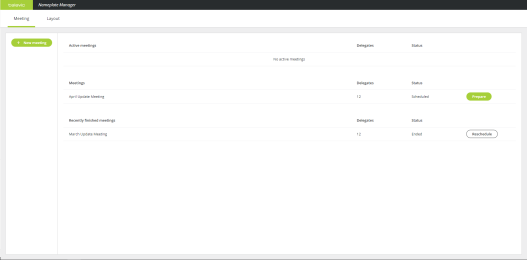
When you finish the configuration of the meeting and the nameplate, you can prepare the meeting to test the content of the nameplates on the physical devices in the room. In this meeting state the meeting and the timer is not yet running.
There are two options to prepare a meeting:
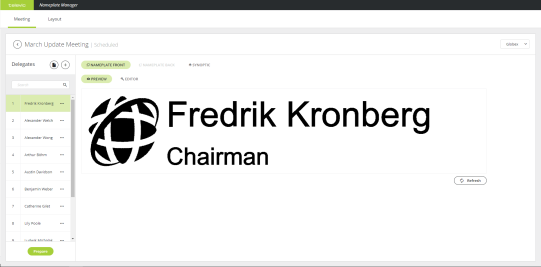
If you switch seats between delegates the nameplates on these seats will not automatically update. This is also not the case when you change the nameplate layout of all delegates using the drop-down in the top right corner. You need to click the Publish all button on the bottom of the delegate list.
You can change the layout of a single Nameplate using the layout editor as described in "Make custom Nameplates for delegates" on page 1. If you change the layout of a single Nameplate the content will be published to the physical device when you click Save.