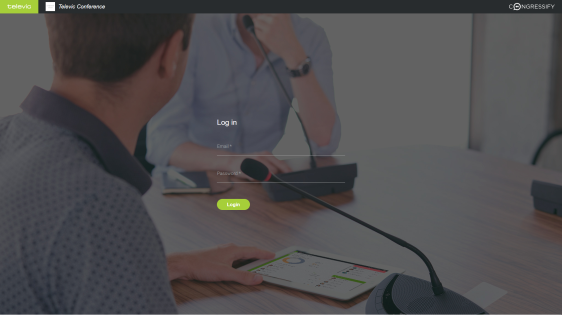
To open CoCon, type http://localhost/ or replace "localhost" by the IP address of the computer where CoCon is installed.
Fill in your email address and password, as configured in CoCon (Meeting Manager) and click Login.
Figure 1-5 CoCon's login screen
Click on your image in the top right corner of the application and select Log Out. Click Yes to confirm.
There are three different types of CoCon users:
CoCon is an application which allows the participants to view the meeting information on their own device. You can only view information and manage speakers in CoCon. To configure the meeting and the delegates you need CoCon.
Create a meeting in the CoCon Meeting Manager application with the delegates that will participate in the meeting. Per delegate you will need to specify an email address and a password, which the participant can then use to log in to CoCon. You will also need a synoptic, where you assign the participants to the seats in this synoptic.
If you want to use voting and see voting results in CoCon you will have to add a Voting Agenda item in the Meeting Manager. When the configuration is ready, prepare the meeting in the Operator application to be able to see it in CoCon.