Configure IP settings
To access the web server your computer needs an IP address and subnet mask that can access the IP address of the central unit. The default IP address of the central unit is 192.168.0.20, which means the computer should have an IP address that is within the same subnet, like 192.168.11 or 192.168.0.21. The subnet mask must be the same for all equipment on the network, 255.255.255.0.
Change IP settings in Windows
- Go to Control panel.
- Click Network and Internet and then Network and sharing center.
_397x246.png)
- Click Change adapter settings in the menu on the left.
_433x268.png)
- Right-click the Local Area Connection and select Properties.
_434x268.png)
- Select Internet Protocol Version 4 (TCP/IPv4) and click Properties.
_204x262.png)
- To assign a fixed IP address to your computer, click Advanced.
_207x234.png)
- Click Add in the IP address pane.
- Enter an IP address in the range of the central, for example 192.168.0.11. Fill in 255.255.255.0 as subnet mask.
- Click OK. You are now ready to access the CoCon system.
Change IP settings in macOS
- Go to the Apple Menu and select System Preferences.
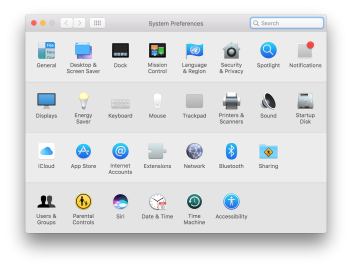
- Select Network from the menu.
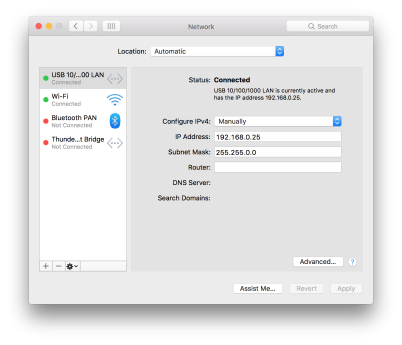
- Click the Advanced button.
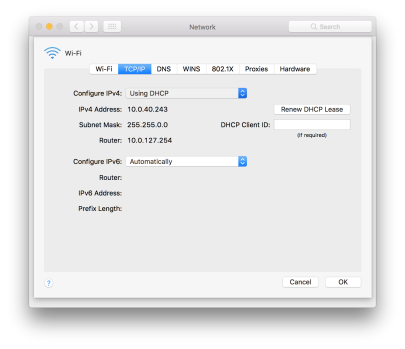
- Select TCP/IP in the menu on top.
- Change Configure IPv4 to Manually.
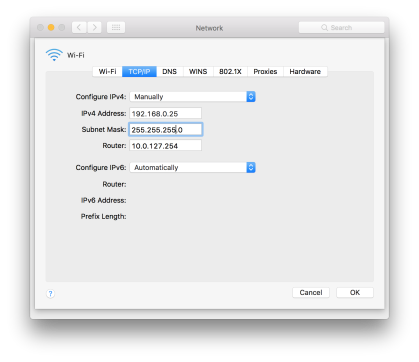
- Enter an IP address in the range of the central unit, for example 192.168.0.11. Fill in 255.255.255.0 as subnet mask.
- Click OK.
If you have a proxy server or firewall installed on your computer check the connection restrictions to the D-Cerno unit IP address and content that uses java scripts.
Please refer to the documentation that came with your installation for the correct settings.
Please refer to the documentation that came with your PC or MAC installation for additional information and the correct settings.
Assigning multiple IP Addresses (IP – Aliasing)
To use multiple tcp_ip addresses on your PC, set a fixed IP address first as explained above and add the appropriate Subnet Mask, Default Gateway and the DNS server addresses.
The Default Gateway and DNS servers can be determined by executing the command “ipconfig /all" in a “cmd” screen.
Windows : Click on start -> enter “cmd” in the search bar and press enter
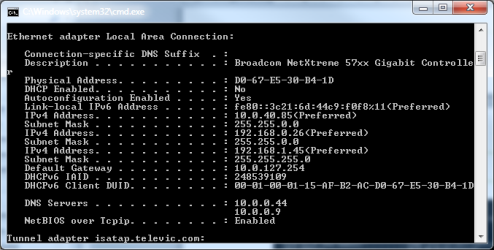
Figure 1-15 Command Prompt
In this example the PC has normally “10.0.40.85” as IP address. Now IP Address “192.168.0.26” (e.g.) has to be added to be able to access the webserver of the central unit.
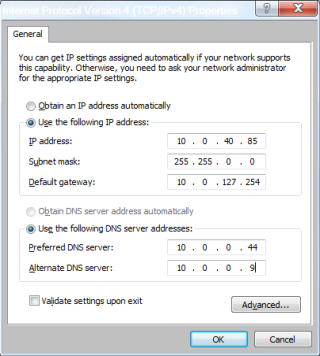
Figure 1-16 DNS and gateway settings
Next click on “Advanced” and “Add”… to add IP Address(es) and click OK twice (Figure 1-17 ).
To assign multiple IP addresses on a MAC we kindly refer to an external document on the Televic partner domain.
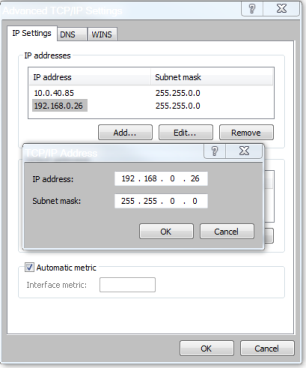
Figure 1-17 Adding IP-address