Connecting devices
Image Output
Connecting to PC (video conference)
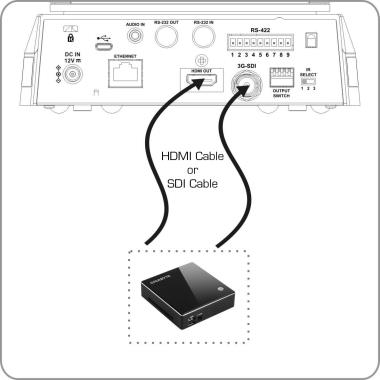
SDI supports the audio output of 48 KHz only.
Connecting to an HDTV/computer monitor (HDMI)
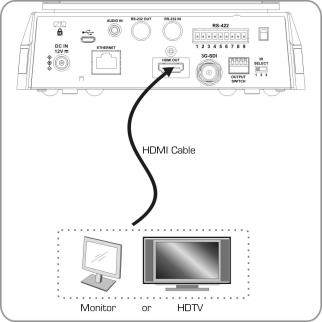
Connecting to Internet
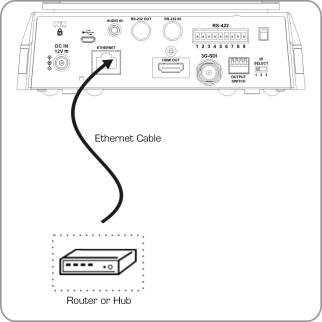
IP-CAM 50 can be used with browsers, Lumens VMS, VLC and QuickTime after it is connected to the Internet.
For use of Lumens VMS, please refer to the User Manual for VMS Software.
IP-CAM 50 supports PoE power supply when coupled with an IEEE 802.3at router or hub.
For better performance, please use the ethernet cable of CAT 6 or above
Connecting AUDIO IN
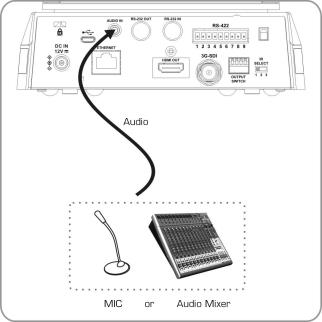
Set the [Audio In] in the OSD to reflect the input device
Controlling VCs with the computer
Connecting to one computer for connection between VCs (RS-232 in/out)
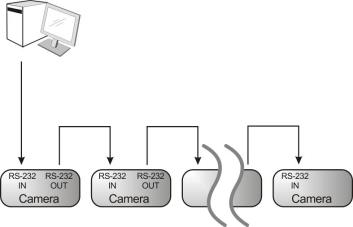
With RS-232 in/out, at most 7 VCs can be connected.
Connecting to one computer for connection between VCs (RS-422)
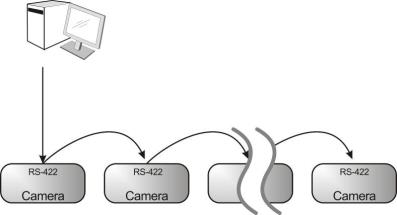
With RS-422, at most 7 VCs can be connected.
Use of IP-CAM 50 with Internet Connection
Setup before use
- Connecting the screen through HDMI output.
- Press [MENU] on the Remote Control to display the OSD menu.
- Press [MENU] on the Remote Control to display the OSD menu.
DHCP: Enable/disable the dynamic host configuration protocol
IP Address: Confirm or modify the IP address of CoCon
Subnet mask: 255.255.255.0
Gateway: Preset 192.168.100.254
Please modify the above settings based on the LAN setting of the operating environment. To use DHCP, please connect the IP-CAM 50 to LAN and then confirm IP address.
- After completing settings, press [MENU] to exit the OSD menu.
- After completing setting and confirming IP address, HDMI cable can be disconnected.
Start Using
For details, please refer to Chapter 7 Network Function Settings Description.
In addition to browsers, other software such as Lumens VMS, VLC and QuickTime can be used for operation.
For operation of Lumens VMS, please download the software and its user manual from Lumens website