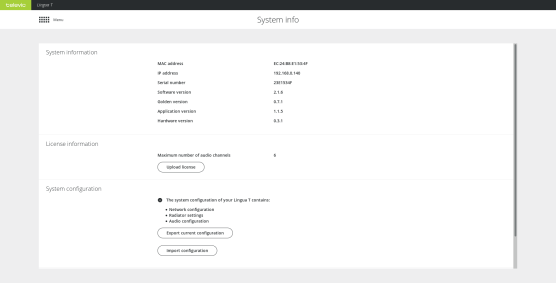
On the System info page you can find different general transmitter settings such as the MAC address, as well as the software and hardware version of the transmitter. This is also the location where you can manage the transmitter licenses and import and export the configurations of all settings of the transmitter.
Figure 8-1 The System info page
Under System information you can find all transmitter specifications such as the MAC address, the IP address and the serial number of the transmitter. Next to this information you can also see which versions are running on the transmitter.
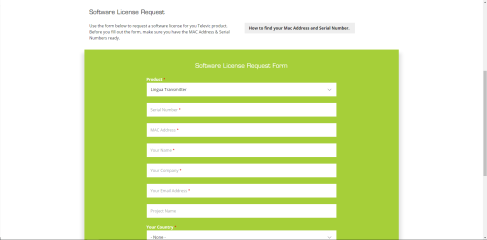
There are two different licenses available for the CoCon transmitter, which license you need depends on the amount of channels you require. There is a license for six, twelve or forty channels. You can upgrade the license whenever you require additional channels. Follow the procedure described below to acquire a new license. Once you have received the license, click Upload license on the System info page.
When you want to upgrade your license perform the following procedure:
When you have similar rooms with similar setups you can export the complete configuration of one room and upload it to the infrared system of the other room. The system configuration file contains the network settings, the radiator settings and the audio settings.
Click Export current configuration to export the configuration. To upload the configuration click Import configuration.
When you have some technical problems with your system it can help to view the logging of the system. To download the log files click Download under Download log archive on the System info page.
The most recent log file is it the one with the number 00.