 in the menu bar on the left to view and manage the meeting agenda.
As chairperson you will have additional options which are not possible for delegates. While a delegate can only view information, the chairperson can also manage different settings such as the agenda items of the meeting and the speakers.
The chairperson can manage the whole meeting as well as single agenda items. Click the Agenda icon in the menu bar on the left to view and manage the meeting agenda.
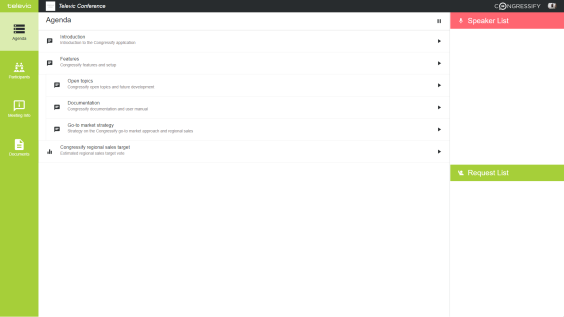
Figure 1-9 The Agenda tab in CoCon for a participant with a chairperson role
As chairperson you can pause an active meeting, simply tap the pause button next to the Agenda header.

Figure 1-10 How to pause a meeting in CoCon as chairperson
When the meeting is paused you will get the notification that you have no active meetings. As chairperson you need to tap Resume to continue the meeting.
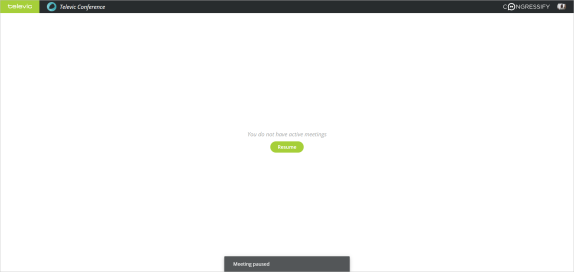
Figure 1-11 How to resume a paused meeting as a chairperson
As chairperson you can start individual agenda items, simply tap the play icon  next to the agenda item. When the agenda item is activated a green checkmark will appear next to the item.
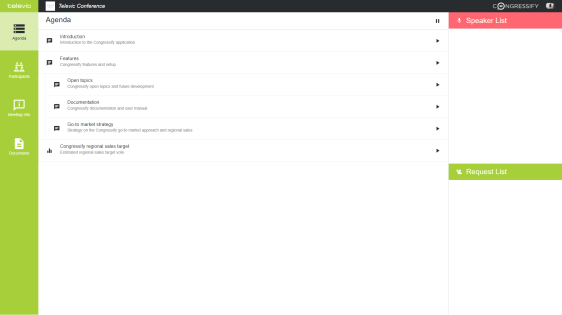
Figure 1-12 How to start agenda items in CoCon
When the meeting contains a voting agenda topic, an additional step is required to start the voting. First tap the play icon next to the voting agenda item, then different buttons will appear to manage the voting. The following options are available:




Figure 1-13 Different button states available for voting agenda items. 1. voting agenda item not started yet, 2. running voting agenda item, 3. paused voting agenda item, 4. stopped voting agenda item.
When all delegates have voted, stop the voting to view the results. On the agenda item itself you will get a preview of the voting results. The preview shows a graphical representation of the voting results together with the percentage of votes for every option. For a detailed report of the voting tap Results.

Figure 1-14 Preview of the voting results on the voting agenda item
The detailed voting results show the following information:
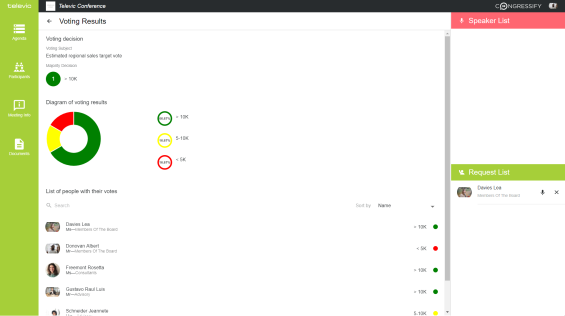
Figure 1-15 Detailed description of the voting results
As a chairperson you can manage the microphones of all participants using CoCon. Click the Participants icon  in the menu bar on the left to go to the Participants page.
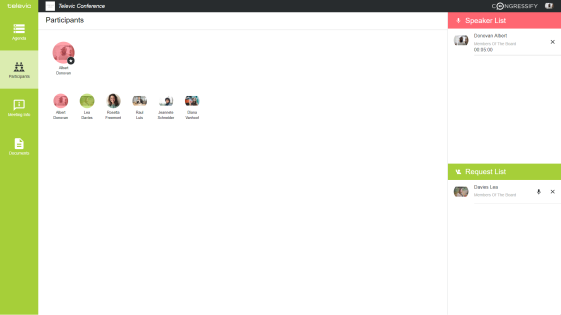
Figure 1-16 The Participant page where the chairperson can activate microphones
To activate the microphone of a participant tapthe person's image on the Participants page. The image of the participant will be shown in red, indicating that this person is speaking. The speaker will also appear in the Speaker List on the right .There you will see the participant's information with the speech timer.
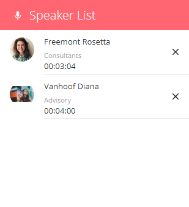
Figure 1-17 The Speaker List showing speakers and their remaining speech time
If configured in CoCon, a participant can also request to speak. In this case the participant will appear in the Request List on the right and the image of that person will be shown in green on the Participants page. Tap the microphone icon  of the participant in the request list to activate the microphone.
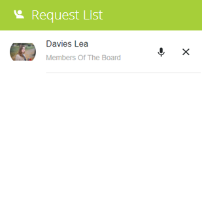
Figure 1-18 The Request List showing all requests
There are two options to deactivate the microphone of a speaker:
 next the participant.
The Meeting Information page shows all meeting related information such as the status of the meeting, the time, and the description. To see this information tap the Meeting Information icon  in the menu bar on the left.
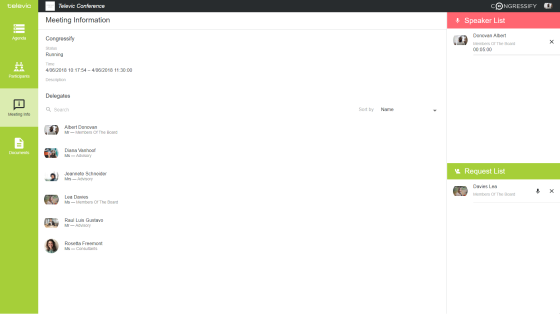
Figure 1-19 The Meeting Information page with all general meeting information
On this page you can see all participants of this meeting, you can use the Search functionality to find specific participants. There is also an option to sort the participants by Name or Group.
With CoCon you can view different meeting related documents on your own device. Click the Documents icon  to view all documents. Click the document to open and view the document. In the document view you can easily navigate to the different pages, zoom in and out, and search for specific words.
On the Documents page itself there is also a Search functionality. Type any keyword into the to search field and the results will be adjusted in realtime. Swipe through the different pages or pinch to zoom in.
_563x267.png)
Figure 1-20 The Documents page in CoCon