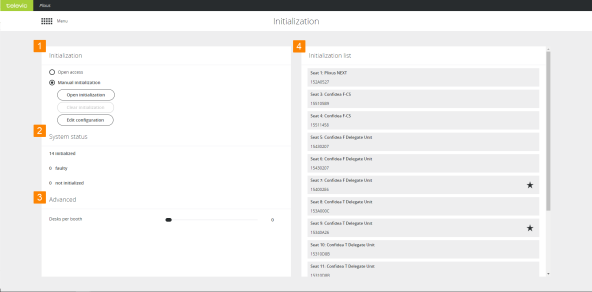
The CoCon system always works with seats. A seat is a conceptual name for a unit or a group of units which are combined on that seat. By default this is a one-to-one mapping, so every unit has one seat. However, there can be more advanced cases where units are manually combined on a seat. During initialization you can assigns units to seats.
Figure 1-58 Initialization page
There are two initialization modes possible: Open access and Manual initialization.
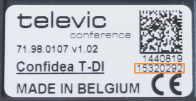
 : click to swap unit. When a unit is faulty, it will be greyed out in the web server. Click the icon and enter the serial number of the new unit. Click the checkmark icon
  to confirm. Note that you can only replace units with units of the same type.
 : click to modify the seat number. If you do this during the initialization, the next assigned unit number will be the highest unit number + 1.
 : click to remove individual units during initialization. After removal the microphone LED will blink red again.
You can only manual initialize units with a microphone button. Units without this button (e.g. Confidea channel selector) are automatically assigned to a seat.
 to change the label of the unit or booth.
 :see "Hot swap procedure" for more information. , specify the seat number and confirm.
 (delegate),
  (chairperson) or
  ) to change priority of the unit. A VIP unit has the same speech priority as a chairperson but without the prior/next and start/stop vote function.
  to change the booth configuration. Create new booths or group desks by changing booth and desk number.
 to activate the intercom function of your unit or booth. Click the icon
  to deactivate it. Intercom allows the operator or participants with a Lingua ID, multimedia or Confidea units to call each other.
Do not change properties during meetings, because this can disturb your meeting.
You can also use CoCon to configure different settings such as the priority of the unit.
Sometimes you need to swap two or more units in your CoCon setup, for example when you have a faulty unit. In CoCon it is possible to swap these units without the need to reinitialize all units. Follow the procedure described below to swap units:
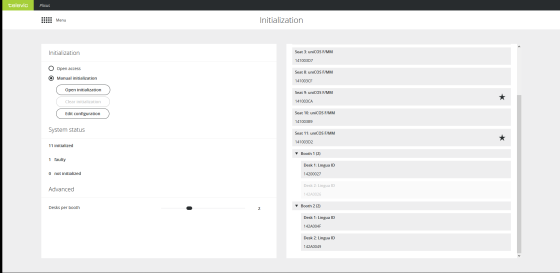 .
.
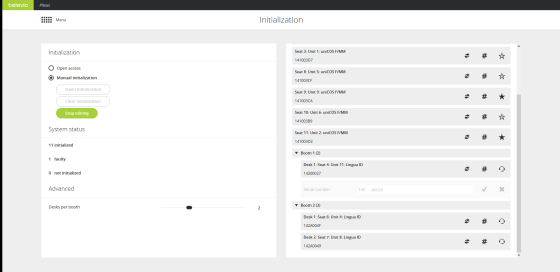
to confirm the change.Some setups use a wireless microphone to allow people in the audience to ask questions. As chairperson, you want to be able to control this microphone. For this use case you need Dante. In the CoCon web server you can give discussion capabilities to a Dante input. This input then becomes available in the operator view, where you can manage the microphone activity.
To visualize all Dante channels, click the filter icon  next to Initialization list and select Show Dante Channels. You can recognize Dante input channels by their seat number, it has the format: 600XX. Dante output channels have the format 610XX.
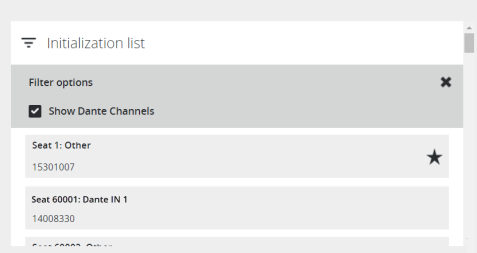
Figure 1-59 How to visualize Dante channels in the CoCon web server
To assign discussion capabilities to a Dante channel, click Edit configuration and then click the microphone icon  next to the Dante channel. When discussion capabilities are active, the icon changes to
  . To remove the discussion capabilities, click the icon again.

Figure 1-60 Possible actions for Dante channels during Edit configuration on the Initialization page of the web server
If you activate the discussion capabilities of a Dante channel, CoCon treats this seat the same as any other seat with a discussion unit. This means that you can manage the microphone activity using the Operator page. In CoCon this unit is also visible, there you can drag the unit onto the synoptic in the Room Configurator application.
When your conference system contains a thrid party microphone and speaker, you need to link these on the same seat. To link the Dante input and output, change the seat number of the output to the seat number of the input. The input and output are now treated as one.
If you want to initiate an intercom call from a seat with a Dante input to another unit, you need to create an API call. Other units such as the uniCOS and Lingua ID units can use their interface to initiate an intercom call with this seat.