Configure general meeting settings
The default landing page of the Meeting Manager is the Meeting tab. You can always access this page by selecting the Home tab on top of the screen.
Introduction
In the Meeting Manager different tabs are available where you can configure the different parts of a meeting. The following tabs are available:
Which tabs your system contains depends on the license module you have.
- Meeting: Here you can define the main meeting parameters: title, description, time, duration, etc.
- Delegate list: Here you can indicate which delegates will be attending the meeting.
- Translate Meeting: Here you can define languages to be used in the meeting, and translate the meeting and all its parts into other languages. This is only available for the Plixus Multimedia Engine.
- Agenda: This tab will allow you to define the agenda for the meeting.
- Speech time: This tab contains all the settings regarding speech time in the meeting.
- Documents: Here you can upload documents that will be accessible by the interactive delegate units. This is only available for the Plixus Multimedia Engine.
- Services: Here you can specify what services are available to the delegates with an interactive delegate unit in the room. This is only available for the Plixus Multimedia Engine.
- Synoptic: Here you can specify the position of the delegates inside the meeting room.
The Home ribbon
The Home ribbon on top of the screen contains the following functions:
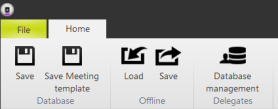
- Save: Click this button to save the current meeting to the central database. Note that this is an operation which transfers the data from the meeting you created to the central database. Therefore, no information is saved locally when you perform the Save action.
- Database management: As described in "Database Management" on page 1, this button opens the Database Management window, where you can manage the delegate database and groups.
The meeting tab
On the Meeting tab you can define the general settings of a meeting such as the name and the date. Below you can find a detailed description of all settings on the Meeting tab.
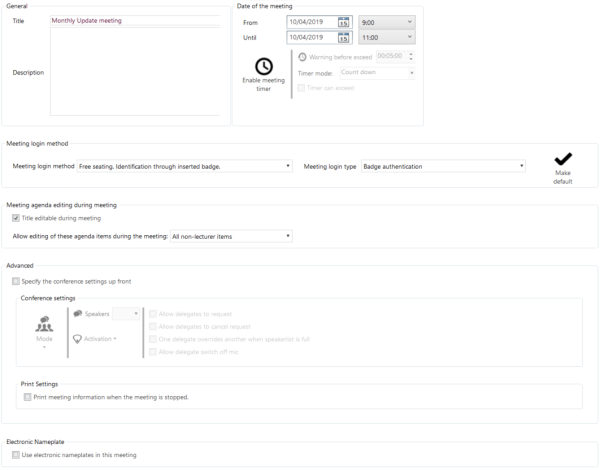
Figure 1-18 Available meeting options on the Meeting tab of the Meeting Manager application
Title
Specify a title for the meeting. CoCon uses this title for other applications such as CoCon Signage. It is possible to change the title of meeting during a meeting in the Operator application, if you activate this setting (see "Meeting agenda editing during meeting" on page 1).
Description
In the description field you can insert more information about the meeting.
Date of the meeting
Here you can specify the date and time of the meeting.
There is also an option to enable a meeting timer, which is switched off by default. If you enable the meeting timer, a timer counts down during the meeting (this is visible in the Operator Application for the operator and in the Signage Application for the delegates).
The duration of the timer is determined by the date settings From and Until. You can configure the following meeting timer options:
- Warning before exceed: this is the time before the scheduled end of the meeting when CoCon gives a warning. At that time, the color of the timer bar changes (from green to orange) to indicate that the meeting time is nearly up.
- Timer mode: count down or up. With this option you configure whether the meeting timer will count down from the specified duration or up to the specified duration.
- Timer can exceed: if enabled, the timer continues counting if the meeting time is exceeded. If you don’t check this box, the timer will stop counting if the meeting exceeds the specified end time.
Meeting login method
Here you specify how delegates identify themselves in the meeting. The following Meeting login methods are available:
- Delegates are allocated to a fixed seat; the delegate must introduce their badge before they can participate in the meeting. This means that delegates are assigned a fixed seat in the preparation of the meeting (in the Meeting Manager). Before the meeting starts, delegates identify themselves using their badge to make their presence known to the conference system. The Operator Application displays the status using the following colors:
- Green: for valid badges, inserted on the correct location.
- Red: for invalid inserted badges.
- Grey: for locations where no badge is inserted.
- Delegates are allocated to a fixed seat; Inserted badges are ignored. This option puts the delegates on a fixed seat. Badges are not recognized.
- Free seating: Identification through inserted badge. In this option the delegates are not positioned on a fixed seat before the meeting starts. They can sit wherever they want; the seat automatically shows their name when they insert their badge. It is also possible to put delegates on a seat (as in the options above). If they also have a badge, this should of course be inserted on their specified seat. The Operator Application will show a badge indicator in green (for valid) and red (for invalid).
- Free seating, external authentication. Here delegates identify themselves with an external authentication method such as a fingerprint. You can select the method on the right side under Meeting login type.
On the right side, you can click Make default. This makes the selected login meeting, the default method. This means that every time you create a new meeting, CoCon uses this login method by default. You can still change the login method, if required.
Note that an empty meeting in the Operator Application (without preparation in the Meeting Manager) is always created with the Free seating: Identification through inserted badge method.
Meeting agenda editing during meeting
With this setting you can specify how much editing is allowed by the operator during the meeting (using the Operator Application). The following options are available:
- Title editable during meeting: check this box to allow the operator to change the title of the meeting in the Operator application while the meeting is running.
- Allow editing of these agenda items during the meeting: here you can specify which agenda items the operator can edit during the meeting. Available options are:
- None: no editing of the agenda is allowed during the meeting.
- Only non-treated items: the Operator Application will only allow to change agenda items that haven't started and are finished during the meeting.
- All non-lecturer items: this allows the operator to change all agenda items (excepting the lecturer items).
Advanced
Conference settings
If you select the option Specify the conference settings up front, you can configure some of the microphone control mode settings up front.
In the first section you can select the speech mode, the options are:
- Operator: in this mode, the operator controls all conference activity. Delegates cannot switch on their microphones.
- Group discussion: is a semi-automatic mode for standalone conferences where less protocol has to be followed
and no operator is available. Pressing the microphone button activates the microphone unless the
maximum amount of open microphones is reached. In this case the microphone will go into request mode.
When another microphone becomes inactive, the first unit in the request list will become active.
- Direct Speak: in this mode, the delegates can switch on their own microphones.
- Request: In request mode you do not automatically get the floor when you activate your microphone. First you have
to request the floor. The chairman then assigns the floor to a speaker using the next-in-line button (or using
the operator page)
Next to the speech you can configure:
- Speakers:define the maximum number of microphones that can be active at the same time. Note that a chairman microphone (indicated with a star) can always be active on top of the number specified here.
- Activation: select the microphone activation type: Toggle (press once), Push (keep button pressed) or Voice (voice activated)
- Additional options: here you can select some additonal settings, note that not all options are available for every microphone mode.
- Allow delegate to request
- Allow delegates to cancel requests
- One delegate overrides another when the speaker-list is full
- Allow delegates to switch off mic
Default conference settings
You can set the default conference settings in the Defaults tab of the Room Configurator, see "Default Settings" on page 1 for more information.
Print
Check this box to automatically show a print preview with all meeting information after the meeting has finished. See "Print" on page 1 for more details about this.
Electronic Nameplate
Select the option Use electronic nameplates in this meeting to enable the nameplate functionality in CoCon. For more information on how to configure and use nameplates see "Nameplate application" on page 1.