Configure speech timers
On the Speech time tab you can configure different timers for the meeting. The Speech time page contains three columns:
- Global speech time: this column will allow you to define the global speech time (applicable for ALL groups or delegates).
- Group speech time: this column will show the groups currently present in the meeting. There will be a timer-icon in front of them if a speech timer is applicable for the group.
- Delegate speech time: this column contains the delegates present in the meeting, and their speech time information (an icon in front of the delegate indicates if a speech timer is active for this delegate).
On top of the screen, in the Speech timer-ribbon, you can define the specific timers. These are only applicable to the selected group or delegate. The difference is also discussed further in this section.
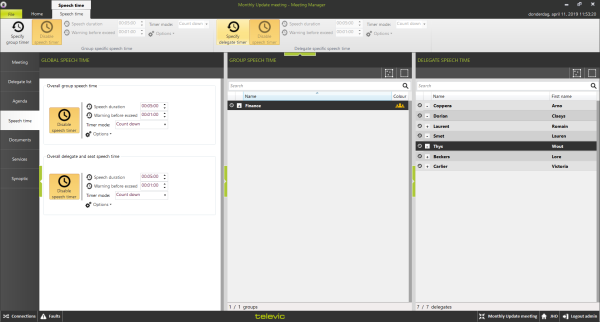
Figure 1-22 Speech timers in the Meeting Manager
There are different types of timers in a meeting.
- Group speech timer: This timer will determine the total speech time for a group within the meeting. Any delegate who is part of the group will have an impact on the timer.
- Delegate speech timer: This timer will determine the total speech time for delegates participating in the meeting.
Group speech timer
This timer will determine the total speech time for a group within the meeting. Any delegate who is part of the group will have an impact on the timer.
There are two types of group timers:
- Overall group speech timer: this timer is applicable for all the groups present in the meeting. Configure this timer in the column on the left.
- Group specific speech timer: this is a timer that is defined for only one group. This can be as an exception to the previous overall group speech time. Alternatively you can use it because only one group needs speech time. Configure this timer using the button in the ribbon
Overall group speech timer
Define the Overall group speech timer in the left column of the speech timer interface, in the section Overall group speech time. There is a button to enable or disable the group speech timer (the action on the button indicates which action you will perform). The options for this type of timer are:
- Speech duration: This is the time you allow for each group. This is the time during which they are allowed to speak in the entire meeting.
- Warning before exceed: is the amount of time before the scheduled end of the agenda item, you want to display a warning. At that time, the color of the timer bar will change (from green to orange) to indicate that the time of the agenda item time is nearly up.
- Timer mode:This option will select whether the agenda item timer will count down from the specified duration or up to the specified duration.
- Options: here you can select/deselect the following options:
- Include chairmen: This option will specify whether the chairmen should be included in the group speech time. If activated, the group speech time will diminish for the chairmen as well; if deselected, the speech time will not decrease when the chairman is speaking.
- Count for every speaker: This option specifies that if multiple microphones from the same group are active at the same time, all microphones are taken into account for the speech timer. If this option is selected, and two microphones of the same group are active at the same time, then 2 seconds are deducted from the speech time for every 1 second real-time.
- Timer can exceed: if enabled, the timer continues counting if the meeting time is exceeded. If you don’t check this box, the timer will stop counting if the meeting exceeds the specified end time.
- Automatically switch off microphone: This allows you to define whether the microphones of the group automatically switch off once the group speech time is finished.
Group specific speech timer
Configure the Group specific speech timer using the button in the ribbon on top of the screen, in the section Group specific speech time. Select one or more groups in the middle column and click Specify group timer. With this button you set the speech time of the groups you selected. If you click Enable speech timer, you can configure the speech time settings for that specific group(s). The speech time settings are the same as described above.
Delegate speech timer
This timer determines the total speech time of a delegates participating in this meeting. There are two types of delegate timers (as shown in the image above):
- Overall delegate speech timer: this timer is applicable for all delegates present in the meeting.
- Delegate specific speech timer: this is a timer that is defined for any one delegate. This can be as an exception to the previous overall delegate speech time. Alternatively it can be used because only one delegate has need of speech time, and not the others.
Overall delegate speech timer
The Overall delegate speech timer is defined in the left column of the speech timer interface, in the section Overall delegate speech time. There is a button to enable or disable the delegate speech timer (the action on the button indicates which action you perform if you click on it). The options for this type of timer are:
- Speech duration: This is the time you allow for each delegate. This is the time during which they are allowed to speak in the entire meeting.
- Warning before exceed: is the amount of time before the scheduled end of the agenda item, you want to display a warning. At that time, the color of the timer bar changes (from green to orange) to indicate that the time of the agenda item time is nearly up.
- Timer mode: This option will select whether the agenda item timer will count down from the specified duration or up to the specified duration.
- Options: here you can select/deselect the following options:
- Include chairmen: This option will specify whether the chairmen should be included in the speech time. If activated, the chairmen will have speech time as well; if deselected, the chairman will have no speech timer (it will be possible to start a chairman speech time counter during the meeting).
- Speech time can exceed: if enabled, the timer continues counting if the meeting time is exceeded If you don’t check this box, the timer will stop counting if the meeting exceeds the specified end time..
- Automatically switch off microphone: This allows you to define whether the microphones of the delegate automatically switch off once the delegate speech time is up.
- Reset timer on microphone switch off: If activated, the speech time resets if the microphone is switched off. This means that each delegate can eg. Speak for maximally 5 minutes at one time. When his/her microphone is deactivated, the speech timer resets. If this option is not selected, then the delegate will only be allocated the given amount of time once in the meeting.
Delegate specific speech timer
Activate and configure the delegate specific speech timer using the buttons in ribbon on top of the screen, in the section Delegate specific speech time. After selecting one or more delegates in the right column, you can click Specify delegate timer. If this button is selected, then you are specifying delegate specific settings for the selected delegate(s). The button Enable speech timer allows you to configure speech time settings for that specific delegate(s).
If you are specifying a timer, then the options for this type of timer are the same as the overall delegate timer (see the options described directly above).