General Meeting settings
Introduction
The Operator Application works with the concept of a meeting. A meeting takes place in a room, and in the room, only one meeting can active at the same time. A meeting has the following attributes:
Each meeting has a specific meeting state. A meeting can have only one of these five meeting states at any time:
- New: a newly created meeting which has not yet been started.
- Being edited: a meeting that is opened in the Meeting Manager and to which changes are being made.
- Running: a started meeting.
- Paused: a started meeting which is paused.
- Ended: a meeting which has been started and finished.

Figure 1-29 The different states a meeting can have
Only a meeting that is in the new, running or paused state can be opened in the Operator Application.
Open prepared meeting
Go to File > Open > Open Meeting and click Open prepared meeting to view all created meetings. Here you can browse the prepared meetings for a certain time-range using the two date pickers available at the top. By default, all the meetings of the current day are shown.

Figure 1-30 Operator Application: open prepared meeting
This overview shows all meetings found in the specified time range, ordered by date. A color code shows the state of the meeting (see "Introduction" on page 1 for a detailed description of all states):
- New: gray
- Being edited: blue
- Prepared meeting: yellow
- Running: green
- Paused: orange
- Ended: red
To open a meeting, select the meeting and click Open.
If you want to connect multiple Operator Applications to the same meeting, start the meeting in the first Operator Application. Then open the second Operator Application search for the meeting on the current day which is colored green. If you then click “Open”, the meeting is concurrently opened in multiple Operator Applications and you can control it simultaneously from the different applications.
Create new meeting
A new meeting is a meeting which has not been prepared with the date and time information in the Meeting Manager. To create a new meeting go to File > Open > Open Meeting and select Create new meeting.
There are two options for new meetings.
- You can create an Empty meeting : An empty meeting was not yet configured in the Meeting Manager
- Use a Template:this contains a number of settings configured in the Meeting Manager, such as delegates and agenda items. For more information about Meeting Templates, see "Configure general meeting settings" on page 1.
On the right, you can specify some general meeting details such as title, description, and start and end time. Then click Open. You now created a meeting that has the status New meeting. You can view the synoptic of the room, but you cannot manage the microphones. On top of the window, you see the following message: The opened meeting is not started yet. You cannot control the meeting unless it has been started. Click Start meeting to start the meeting and control all microphones.
Any other instances of the Operator Application which would connect now will detect the new meeting state. They will then display the following dialog with title “Open running meeting”
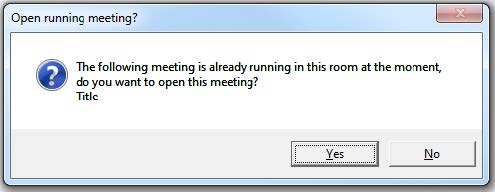
If you answer Yes,this opens the running meeting. If you answer No, then the start screen of the Operator Application will be opened. Here you can specify the details for another meeting, but you will not be able to start it.
Autostart template
In the Operator application there is an option to automatically start a meeting. This can be interesting when you have a recurring meeting with a fixed structure. When you open the Operator application the meeting automatically starts.
To activate the autostart function go to File > Open > Open Meeting > click Create new meeting, under Specify Meeting on the right select Autostart Template. When you no longer want to automatically start the meeting, unselect the Autostart Template option.
Main screen
Once the meeting is open, the Operator application shows the following information and options:
- On top: control ribbons
- On the left: switch between various views: synoptic view, delegate list, agenda tab, speech timers. Note that some of these may not be available in a meeting.
- In the middle: room synoptic
- On the right: speaker list, request list, group list, active agenda item.
- In the footer bar: diagnostics information, number of present delegates and number of present delegates with voting right, meeting title, Room Server name, Logout.

Figure 1-31 The main screen of the Operator application when you start the application
The following sections describe how to use these different elements.
The Home ribbon
The home ribbon contains the most frequently used and essential functions. Using the ribbon you can start the meeting, change microphone mode, go through the agenda and start a voting. The ribbon consists of different sections:
- Meeting: change meeting status
- Conference settings: manage
- Microphone control: activate microphones
- Edit: edit meeting title
- Agenda: navigate through the agenda items
- Voting: start / stop voting
- Instant voting
- Volume

Figure 1-32 The Home ribbon
Meeting
These buttons allow you to control the meeting, different options are available:
- Prepare meeting: this option is only available when your meeting uses electronic nameplates. When you click Prepare, the meeting is not yet started, but the content of the nameplates is published. The Prepare status allows you to test some meeting settings, without the need to start the meeting.
- Start: is only available if the meeting is not yet running. Click it to start the meeting and enable all conference controls. Once the meeting is active this button will change to Pause, this pauses the meeting and disable all conference functionality. A message then appears to indicate the meeting is paused. Clicking Start or Resume meeting to resume the meeting.
When you pause a meeting, while a voting session is ongoing, this also pauses the voting session. When resuming the meeting, the voting session will automatically resume.
- Re-send meeting: use this option to push changes of different meeting related elements such as the delegate list, agenda items and documents. When you click this button this information is updated without the need to pause and resume the meeting.
- Finish: click this button to end the meeting. When you click the button a confirmation message appears. click Yes to finish the meeting or click No to return to the meeting.
When a meeting is active you cannot change the synoptic of the meeting in the Room Configurator. To do so, you need to pause the meeting, close all active Operator Applications and then open the Room Configurator to allow the changes.
Conference settings
In the Conference settings section, you can configure the microphone activation settings. The following settings are available:
Speech mode, the options are
- Operator: in this mode, the operator controls all conference activity. Delegates cannot switch on their microphones.
- Group discussion: is a semi-automatic mode for standalone conferences where less protocol has to be followed
and no operator is available. Pressing the microphone button activates the microphone unless the
maximum amount of open microphones is reached. In this case the microphone will go into request mode.
When another microphone becomes inactive, the first unit in the request list will become active.
- Direct Speak: in this mode, the delegates can switch on their own microphones.
- Request: In request mode you do not automatically get the floor when you activate your microphone. First you have
to request the floor. The chairman then assigns the floor to a speaker using the next-in-line button (or using
the operator page)
The options next to this speech mode allow the operator to modify it according to his wishes:
- Speakers:define the maximum number of microphones that can be active at the same time. Note that a chairman microphone (indicated with a star) can always be active on top of the number specified here.
- Activation: select the microphone activation type: Toggle (press once), Push (keep button pressed) or Voice (voice activated)
- Additional options: here you can select some additonal settings, note that not all options are available for every microphone mode.
- Allow delegate to request
- Allow delegates to cancel requests
- One delegate overrides another when the speaker-list is full
- Allow delegates to switch off mic
Microphone control
With these buttons you can control the microphones, the following buttons are available:
- Next: this activates the microphone of the next speaker in the request list. Note that some constraints can overrule this (e.g. maximum number of microphones active).
- Clear All: deactivate all microphones, including chairmen microphones and those that are in request. If you click the arrow under the button, a drop-down list opens where you get additional options:
- Clear Speakers: clear all active microphones that are not a chairman microphone. This doesn't activate active chairman microphones or microphones in request.
- Clear Requests: clears the list of all microphones in request.
- Re-activate: this will re-activate the microphone that was last switched off.
Edit
Click the button to change the meeting title.
Agenda
With these two buttons you can navigate through the items in the agenda of the current meeting (if an agenda is configured). You can see the active agenda item on the bottom of the right window pane.
Voting
When a voting agenda item becomes active, the voting control buttons become available. This means that the operator can control the voting using the controls in the Home ribbon. Click Start to start the voting session and click Pause to temporarily stop the session. Click Stop to finish the voting session. After you stopped the voting session, you can always restart it by clicking Restart.
Click Clear to remove the voting results from the screen and Retrieve results to display the voting results again.
Instant Voting
This function allows you to quickly start a vote. For an in detail description of this feature, see "Instant Voting" on page 1.
Volume
Allows you to adjust the general volume of the Plixus engine.